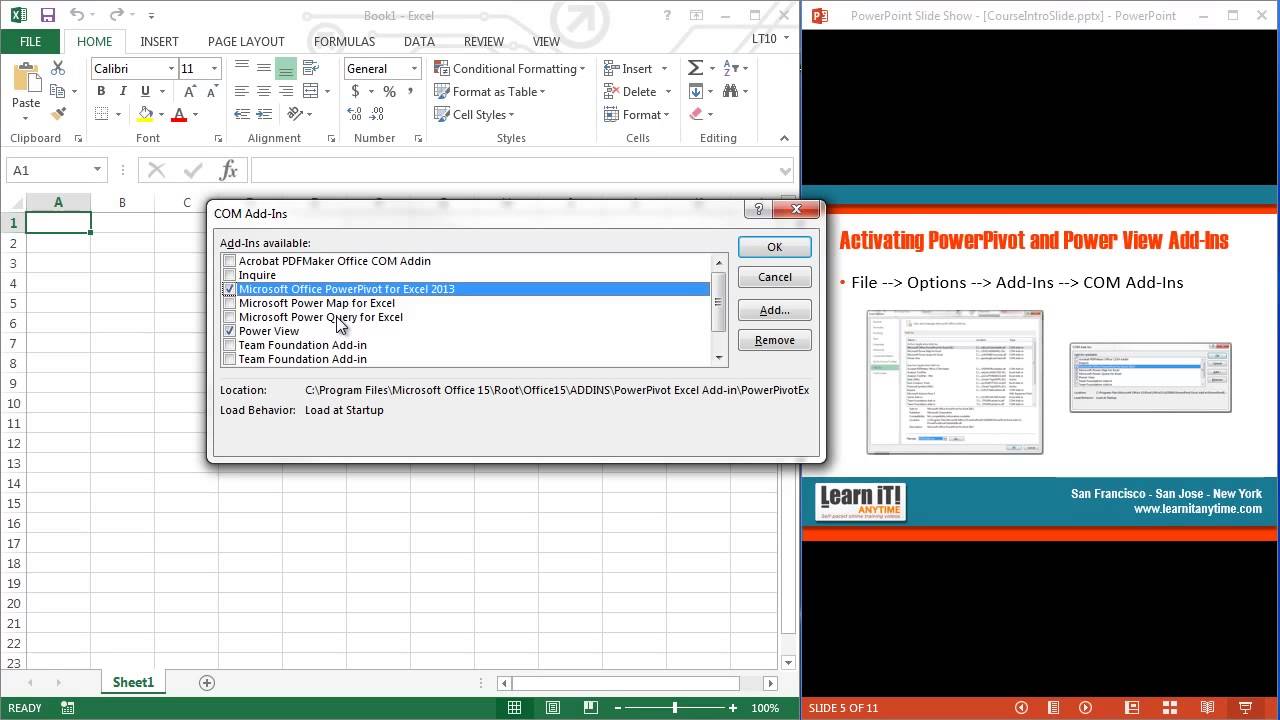
Microsoft Office & Productivity


In this Microsoft Word Tutorial For Beginners Video you'll learn all you need to know about Microsoft Word. This video is relevant for all versions of Microsoft Word: Word 2007, Word 2010, Word 2013, Word 2016, Word 2019.
Whether you're using microsoft word because you need to know it for work or school, or you've never used microsoft word and want to know how to use it, or you're new to computers and want to learn microsoft word, this video is of you!
This microsoft word tutorial is a step-by-step, easy to follow video that will teach you all the essentials you need to know in one video. This Word tutorial is perfect for all skill levels, from beginners to advanced. It is ideal for anyone who wants to learn microsoft word.
Here are some helpful videos about Microsoft Word referenced in this tutorial:
- 3 ways to remove blank page for microsoft word: https://www.youtube.com/watch?v=3ktgSGwoWTc
- How to delete blank page in microsoft word: https://www.youtube.com/watch?v=0zMK1RWA0pM
- How to add page numbers on specific pages: https://www.youtube.com/watch?v=xkp9F5X_UmE
- How to start page numbering on specific pages: https://www.youtube.com/watch?v=Q8ron9VgJv4
- How to scan documents on Canon printer: https://www.youtube.com/watch?v=PICdtQmBgZs
- How to create page borders: https://www.youtube.com/watch?v=DdE9FzyTUQ0
- How to add page borders on specific pages: https://www.youtube.com/watch?v=F0HVymNkDu8
- 7 ways to remove background colors from pasted text in Word: https://www.youtube.com/watch?v=V8cbyNYa4d8
- Tips and tricks microsoft word playlist: https://www.youtube.com/watch?v=Q8ron9VgJv4&list=PLvM3b43t1dzwFygHmhzvAMqp4KKrZqxhp
- How to delete a page in Microsoft word: https://www.youtube.com/watch?v=bhSaYTCxtUc
- How to print specific pages of your document: https://www.youtube.com/watch?v=hrnEyFVplGU
- How to insert signature lines and title lines in word: https://www.youtube.com/watch?v=PEZU74Pp3HM
❤️ Thanks for watching!! If this was helpful for you please like and subscribe.
🙏 Support the channel: www.paypal.me/howtostudio
⏰ Time Stamps for the Topics discussed in this Microsoft Word Tutorial
0:00 - Why Learn Microsoft Word
0:46 - Microsoft Word Layout
5:01 - Writing text, Typing using your keyboard
15:15 - How to format your texts - colors, sizes, etc
32:57 - How to create, insert, edit and delete tables
37:11 - How to add or insert and edit pictures or images
38:30 - How to save your microsoft word document
40:10 - How to add or insert page numbers
41:19 - How to add header and footer
44:46 - How to add or insert link into word document
46:38 - How to add or insert signature line
47:49 - How to add, format and update heading titles
48:36 - How to add watermark
49:30 - How to change page color
50:26 - Page orientation, page columns, page margins
53:34 - How to insert page break (How to move text to the next page)
53:50 - How to add or insert cover page
56:19 - How to add or insert a blank page
57:21 - How to add table of content
1:00:46 - How to indent text
1:01:29 - Spellcheck, grammar check, thesaurus
1:08:16 - How to professionally edit and review text, and add comments
1:11:04 - Page views, ruler, navigation pane, zoom
1:15:04 - how to print your word document and print specific pages
#howto #microsoft365 #microsoftoffice #microsoftword #microsoft #word #wordtutorials #wordtutorial #microsoftwordtutorial #microsoftword2019 #microsoftword2016 #microsoftword2013 #microsoftword2010 #microsoftword2007 #microsoftword2003 #microsoftwordtips
▶ Featured Websites:
- Online Recovery Program - www.kcbrecovery.com
- Online Jobs - www.onlinejobsforamericans.com
- The How To Studio Blog - www.onlinejobsforamericans.com/how-to
- Greeting Cards from Jamaica - www.jamaicawithlove.com
▶ Featured Youtube Channel for Spider Man Games + More:
https://www.youtube.com/@chamberoobareebe
▶ Associated Keywords:
Microsoft word,
MS word,
MS Word tutorial,
Word,
Microsoft word tutorial,
word tutorial,
ms office word tutorial
word for beginners,
how to use microsoft word,
how to use ms word,
winword tutorial,
windows word tutorial,
word tutorial microsoft word,
ms word training course
word turorial for beginners,
Microsoft word tutorial for beginners,
Microsoft word office tutorial,
Microsoft office word tutorial,
Microsoft word complete course,
microsoft word full course,
youtube tutorial for microsft word,
youtube tutorial for ms word,
youtube tutorial for word,
yt tutorial for microsft word,
yt tutorial for ms word,
yt tutorial for word,
ms word tutorial youtube,
microsoft word tutorial youtube,
word tutorial youtube,
ms word tutorial yt,
microsoft word tutorial yt,
word tutorial yt,

Google Sheets Full Course Tutorial
Get Ad-Free Training by becoming a member today!
https://www.youtube.com/channe....l/UCqyBfm_H9ugGirk1u
Join Learnit Anytime for ad-free training, exams, certificates, and exclusive content:
https://www.learnskillsdaily.com
Exercise Files: https://tinyurl.com/5ca4cmnn
Who it's for: This Google Sheets Full Course is for anyone who wants a complete start-to-finish walkthrough of Google Sheets—from brand-new beginners who need help getting comfortable with the interface and entering data, to learners who want to build real spreadsheets and then level up into intermediate and advanced skills like managing multi-tab workbooks, charting, sharing/collaboration, and more powerful analysis tools.
What it is: Google Sheets is a cloud-based spreadsheet application from Google that lets you organize data, perform calculations, build charts, and collaborate with others in real time from any device with internet access. It works similarly to traditional spreadsheet programs, but because it is part of Google Workspace, your files are saved online automatically and can be easily shared for viewing, commenting, or editing. Google Sheets is commonly used for tasks like budgeting, tracking information, analyzing data, creating reports, managing projects, and building simple data-driven workflows for work, school, or personal use.
What you'll learn: You’ll learn the full Google Sheets workflow: what Sheets is and how to start files from Drive/templates, navigate the interface, enter and format data, copy/paste and autofill, build formulas and core functions (including absolute references), and make spreadsheets look professional with formatting, borders, alignment, themes, and printing/export options—then move into intermediate topics like multi-sheet workbooks/tabs, sorting and filtering, freeze panes, charts/graphics, sharing permissions and protecting ranges, and finally advanced topics like advanced functions (logical/lookup/text/date), pivot tables, macros for automation, and using Google Forms to collect data directly into Sheets.
Start 0:00
Introduction 0:08
Opening Google Sheets 1:43
Importing 4:30
Interface - 7:37
Interface - B 9:32
File Menu 11:23
Create-Save-Help 14:06
Help 15:23
Entering Data 15:38
Navigating 20:57
Navigating and Data Selection 24:08
Copy Paste 25:55
Data Types 27:52
Format Values 29:38
Auto Fill 31:14
Insert Links 34:13
Formulas - A 35:23
Formulas - B 38:49
Order of Operations 40:21
Creating Basic Formulas 44:34
Creating More Formulas 45:18
Cell References 51:40
Functions 55:19
Formula and Function Practice 56:27
Formatting 56:58
Formatting more 1:00:55
Paint Format 1:03:00
Practice Formatting 1:04:33
Formatting Rows 1:04:41
Formatting Column Width 1:05:59
Insert Note 1:06:54
Checkboxes 1:07:53
Theme 1:09:05
Beginner Conclusion 1:09:50
Advanced Introduction 1:12:03
Practice File 1:13:11
Import Practice File 1:13:34
Zoom 1:14:37
Tabs 1:15:52
Hide Tab 1:21:17
Sorting 1:22:33
More Sorting 1:24:06
More Sorting and Practice 1:26:24
Filter 1:27:23
Freeze 1:30:30
Printing 1:32:54
Find and Spell 1:36:09
Download 1:37:16
PDF 1:40:00
Share 1:40:12
More Share 1:41:58
Charts 1:42:48
More Charts 1:49:42
More Chart Features 1:53:36
Chart Practice 1:54:13
Images and Drawings 1:55:27
Linking 2:00:09
Protect Sheets and Ranges 2:04:10
More Protect Sheets 2:05:02
Protect Sheets and Ranges Practice 2:05:41
Version History 2:06:16
Accessiblity 2:09:42
Named Ranges 2:10:05
Intermediate Conclusion 2:12:21
Advanced Introduction 2:14:40
Using Logical Statements 2:16:58
AND OR 2:17:55
IF 2:22:14
OR IF Practice 2:25:29
Formatting 2:25:53
Nested IF 2:27:14
SUMIF and more 2:27:14
VLOOKUP 2:31:18
VLOOKUP performed 2:33:14
VLOOKUP performed more 2:36:10
HLOOKUP 2:37:38
INDEX and MATCH 2:41:16
Split Text to Columns 2:43:25
CONCAT and more 2:45:42
CONCAT practice 2:47:25
LEFT and more 2:48:03
UPPER 2:52:51
LOWER and PROPER 2:53:45
LEN 2:54:51
Data Cleanup 2:55:53
Date Functions 2:57:06
More Date Functions 2:59:26
Named Functions 3:00:18
Data Validation 3:01:07
Conditional Formatting 3:02:25
Group 3:04:11
Merge Cells 3:05:01
Pivot Tables 3:06:41
More Pivot Tables 3:07:39
Slicer 3:09:11
Macro 3:10:45
More Macro 3:14:23
Scripts 3:17:00
Tables 3:18:21
Forms 3:20:03
Building a Form 3:24:06
Testing a Form 3:31:20
Summary of Forms 3:33:04
Conclusion 3:34:02
#sheets #tutorial #googleworkspace
(C) 2026 Bomberry Productions
Any illegal reproduction of this content will result in immediate legal action.

Learn how to use Cloud Cowork on your local computer to efficiently produce deliverables. Follow along with our hands-on guide.
This Cloud Cowork tutorial is designed for professionals who need to integrate remote cloud environments directly into their local computer workflow. We break down the technical setup process, ensuring you can manage project files and outputs without switching platforms constantly. Whether you are managing complex assets or simple documentation, this guide provides the exact steps to streamline your output.
By following this hands-on project, you will gain the ability to produce deliverables faster using the tools provided in the download folder below. We focus on practical application, so you can replicate these results immediately in your own environment. All necessary files and supporting documentation are available in the description to help you get started right away.
Subscribe for weekly software workflow breakdowns, and comment below with which cloud tool you want us to cover next.
Exercise Files: https://tinyurl.com/uuykj565
0:00 Getting Started with Cloud Co-work
5:02 Organizing Your Messy Folders
8:32 Creating Your First Claude MD File
10:09 Building Dynamic Live Artifacts
16:31 Automating Monthly Reporting Tasks
19:47 Setting Up Automated Schedules
22:52 Introduction to Cloud Code
41:56 Leveraging MCP and Reusable Skills
1:02:51 Automating Workflows with n8n

Word Tips and Tricks Tutorial
Get Ad-Free Training by becoming a member today!
https://www.youtube.com/channe....l/UCqyBfm_H9ugGirk1u
Join Learnit Anytime for ad-free training, exams, certificates, and exclusive content:
https://www.learnitanytime.com
Exercise Files: https://tinyurl.com/bdmj65v5
Who it's for: This course is ideal for anyone who uses Microsoft Word regularly—whether you're a student, professional, educator, or admin—who feels like they're only scratching the surface of what Word can do. If you want to save time, create more professional documents, and get more value out of Word, this course is for you.
What it is: Microsoft Word is a word processing application developed by Microsoft that allows users to create, edit, format, and share documents. It's widely used for everything from writing simple letters and reports to designing professional brochures and templates. With features like spell check, styles, tables, graphics, and collaboration tools, Word makes it easy to produce polished, organized documents for both personal and professional use.
What you'll learn: Students will learn how to create and customize styles, use tables for layout design, save reusable content blocks, manage long documents with navigation and outline views, enhance productivity with quick access tools and shortcuts, and annotate with the drawing tool. Students will also explore Word’s Editor to polish their writing and discover handy keyboard shortcuts to streamline workflows.
Start 0:00
Introduction 0:09
Styling Tips 1:28
Using a Table to Create a Brochure 11:09
Creating reusable content with Quick Parts 20:55
Navigation Tips 28:20
Managing Word with the Outline View 33:48
Add advanced commands to your Quick Access Toolbar 39:43
Basic annotations with the drawing tool 46:25
Drawing tool Tips 51:51
Using the Editor for a professional review 58:36
Shortcuts with the ALT key 1:08:15
Conclusion 1:15:58
#microsoftword #tips #tricks
Learnit is no longer associated with this channel/video.
(C) 2025 Bomberry Productions
Any illegal reproduction of this content will result in immediate legal action.

Copilot skills in PowerPoint let you save a repeatable task once and reuse it forever — and you can build your own without writing any code.
In this video I walk through the Skills feature in PowerPoint Copilot end to end: what a skill actually is, where to find the ones Microsoft already gives you, and how to build your own custom skill using one reusable prompt framework that Copilot fills in for you. I demo two built-in skills I use every day (Explain this presentation and Visualize this slide), then build a custom "customer success story slide" skill live and run it on rough notes. At the end, a first look at Microsoft's brand-new Create interactive slides skill rolling out in the Frontier program.
If you have a Microsoft 365 Copilot license, everything except the Frontier feature is available to you today.
In this video you'll learn:
✅ What a Copilot skill is (a reusable playbook, not a macro or add-in)
✅ Where skills live and two ways to run them (Choose skills menu + @mention)
✅ How to manage skills and control which ones Copilot can use
✅ How to build your own custom skill with a reusable prompt — no coding
✅ How to upload a custom skill into PowerPoint and run it
Chapters
00:00 The slide that built itself
00:58 What a Copilot skill really is
02:27 Two skills I use every day
04:47 Why custom skills are the real power
05:47 The reusable prompt to steal
06:34 Upload it into PowerPoint
07:23 The moment of truth
08:17 What's coming: interactive slides (Frontier Preview)
09:14 Your task this week
Resources / Links
• Read the full written breakdown + get every new one free → M365 Copilot Connection on Substack: https://m365copilotconnection.substack.com
• Download the reusable skill-builder prompt (free) → https://1drv.ms/b/c/731A5A66AE....1C3CCB/IQBqXK6WmV_xR
• Copilot in PowerPoint — Skills (Microsoft support) — https://support.microsoft.com/....en-us/powerpoint/cop
• Licensing note: The Skills feature and custom skills shown here require a Microsoft 365 Copilot license. "Create interactive slides" is currently Frontier-program preview only and is not yet available to all users. Copilot Chat used to generate the skill file is available more broadly.
• Subscribe → https://www.youtube.com/@M365CopilotConnection
#microsoft365copilot #powerpoint

PowerPoint Full Course Tutorial (6+ Hours)
Get Ad-Free Training by becoming a member today!
https://www.youtube.com/channe....l/UCqyBfm_H9ugGirk1u
Join Learnit Anytime for ad-free training, exams, certificates, and exclusive content:
https://www.learnitanytime.com
Exercise Files: https://tinyurl.com/yc4c88r3
Who it's for: Do you have a big presentation coming up? Increase your PowerPoint skills with our effective, easy-to-follow training. This course is designed for PowerPoint users of all skill levels. Learn tips and tricks, new features, and more to make your next presentation stand out.
What it is: PowerPoint is Microsoft’s legendary presentation tool. The latest version is jam-packed with enhancements to old, trusty features, along with a few new advancements.
What you'll learn: In this course, we’ll start with the basics like slides, images, and transitions. Then, we’ll take a deep dive into some of PowerPoint’s most useful features, like shape editing, SmartArt design, and grouping. Once the essentials are covered, we’ll explore the Slide Master and learn how to save a ton of time with templates. We’ll spend some time talking about charts, tables, and integration with Excel. Finally, we’ll go over some of Microsoft's most powerful PowerPoint features, like recording presentations, collaborating with colleagues, and customizing slideshows, animations, layouts, and more.
Start 0:00
Introduction – PowerPoint Beginner 0:09
PowerPoint Start Screen 01:41
PowerPoint Interface 05:58
Slide Layouts and Components 12:55
Themes 17:34
Designer Tool 21:45
Formatting Text 27:34
Formatting Objects with Contextual Tabs 34:48
Inserting and Formatting Text Boxes 43:12
Inserting and Formatting Images 48:11
Image Cropping and Background Removal 55:40
Eyedropper Tool 1:03:09
Saving and Slide Show 1:09:33
Introduction to Object Management, Tables, and Charts 1:12:37
Grouping Objects 1:14:17
Arranging and Aligning Objects 1:20:34
Animating Objects 1:27:50
Inserting Tables 1:33:13
Formatting Tables 1:39:25
Inserting Tables from Excel 1:44:28
Inserting Charts 1:49:25
Formatting Charts 1:53:29
Inserting Charts from Excel 2:01:05
Applying Transitions and Animations 2:05:23
Morph Transition Basics 2:11:12
Creating Morph Transitions 2:13:41
Print 2:19:36
Conclusion 2:20:40
Introduction - PowerPoint Advanced 2:21:32
Custom Ribbon Tab 2:22:31
Useful Options 2:28:37
Introduction to Slide Master 2:32:38
Custom Slide Layouts 2:40:38
Custom Slides with Content 2:45:14
Saving Designs as Templates 2:54:56
Inserting SmartArt 3:02:12
Modifying SmartArt 03:07:28
Adding Content to SmartArt 3:13:10
Introduction to Media, Collaboration, and Slide Shows 3:21:38
Inserting Local Video 3:22:16
Inserting Online Video 3:28:12
Screen Recording Tool 3:35:11
Collaborating on Presentations 3:41:02
Slide Show Options 3:49:18
Zoom Navigation Feature 3:56:59
Presenting, Annotations, and Subtitles 4:02:55
Rehearsing, Recording, and Exporting 4:08:32
Post-Recording Options 4:17:35
Conclusion 4:19:57
Introduction - Copilot for PowerPoint 4:21:01
What is Copilot 4:21:33
Creating Presentations with Copilot 4:25:35
Using Copilot with Templates 4:32:49
Using Copilot with Designer 4:37:17
Adding and Editing Slides 4:41:52
Transforming Documents into Presentations 4:48:16
Asking Questions and Summarizing Presentations 4:52:54
Navigating to Copilot Lab 4:57:34
Copilot Lab 4:58:38
PowerPoint Copilot Web Version 5:05:26
Conclusion 5:13:38
Introduction - PowerPoint Presentation Skills 5:13:49
Get Started Faster - Converting Outlines into Presentations 5:14:26
Using Designer to Add Engaging Visuals 5:20:17
Storytelling with Presentations 5:23:56
How to Improve Presentation Retention Rates 5:25:08
Using SmartArt Infographics to Easily Boost Retention 5:27:01
Using Whiteboards to Increase Engagement 5:33:38
Using Forms to Encourage Participation 5:36:01
Common PowerPoint Mistakes 5:39:36
Visualizing Data with Animated Excel Charts 5:41:52
Mastering the Presenter View 5:45:03
Creating Custom Themes with Slide Master 5:49:37
Customizing Existing Slide Layouts 5:54:24
Creating New Slide Layouts 5:58:08
Following the Rule of Thirds 6:06:37
Creating Reusable Slides 6:13:05
High Contrast Colors 6:21:38
Check Accessibility 6:24:03
Rehearse with Coach Tool 6:27:20
Valuable PowerPoint Tips 6:31:04
Conclusion 6:32:42
#powerpoint #powerpointtutorial #powerpointtraining #powerpointtips #powerpointtricks
learnit is no longer associated with this channel/video.
(C) 2025 Bomberry Productions
Any illegal reproduction of this content will result in immediate legal action.
Word Full Course Tutorial
Get Ad-Free Training by becoming a member today!
https://www.youtube.com/channe....l/UCqyBfm_H9ugGirk1u
Join Learnit Anytime for ad-free training, exams, certificates, and exclusive content:
https://www.learnitanytime.com
Exercise Files: https://tinyurl.com/4zbvy7v5
Who it's for: Microsoft Word is for anyone who writes. It’s used by students, CEO’s, and everyone in between.
What it is: Microsoft Word is THE word processor.
What you'll learn: In this Microsoft Word course, students can expect to learn the essential skills needed to create, format, and manage Word documents effectively. The course covers foundational topics such as navigating the Word interface, adding and formatting text, and creating lists. Students will also explore more advanced features like working with images, text boxes, and shapes, as well as utilizing proofing tools to ensure document quality. The course emphasizes hands-on practice, allowing students to pause, complete tasks, and enhance their skills by following along with interactive lessons.
Start 0:00
Introduction 0:09
Start Screen 2:13
Word Ribbon and Interface 5:09
Help and Views 10:06
Font Commands 13:38
Paragraph Commands 21:04
Word Styles 28:04
Lists 34:46
Managing Lists 41:15
Proofing and Saving 46:57
Intro to Module 2 55:29
Contextual Tabs and Text Boxes 56:20
Integrating Shapes 1:04:55
Online Image Library Basics 1:11:40
Resizing and Restyling Pictures 1:19:09
Cropping and Editing Pictures 1:25:26
Page Layout Commands 1:32:02
Headers Footers and converting to PDF 1:38:20
Word Beginner Conclusion 1:49:01
Word Intermediate Introduction 1:50:14
Creating Text Styles 1:51:15
Table Insertion Options 1:59:41
Managing Rows, Columns, and Cells 2:05:55
Table Layouts and Inserting Excel Tables 2:13:45
Inserting and Managing Chart Data 2:20:13
Customizing Chart Elements 2:27:32
Exploring the Quick Parts Gallery 2:34:41
Creating Reusable Content 2:40:41
Module 4 Intro 2:48:07
Themes 2:49:10
Document Formatting Design 2:54:23
Saving Files as Templates 2:58:58
Defining and Managing Columns 3:09:44
Section Breaks 3:14:49
Cover Pages 3:20:29
Table of Contents 3:25:07
Index 3:31:56
Outline View 3:36:31
Mail Merge with Outlook 3:42:38
Word Intermediate Conclusion 3:52:46
Word Advanced Introduction 3:53:52
Inserting Online Video 3:54:51
Inserting Screenshots 3:58:35
Inserting Local Media 4:01:58
SmartArt 4:04:18
Managing SmartArt 4:11:15
Drawing Tools 4:16:37
Drawing Gestures 4:22:59
Sharing Documents for Collaboration 4:26:48
Track Changes 4:32:00
Table of Figures 4:39:50
Hyperlinks and Bookmarks 4:46:26
Footnotes and Endnotes 4:53:56
Research Tool 4:58:41
Citations 5:01:57
Module 6 Introduction 5:05:23
Introduction to Security 5:06:11
Formatting Restrictions 5:11:37
High-Level Restrictions 5:18:10
Forms and Developer Tab 5:24:02
Inserting Form Controls 5:29:27
Securing Forms 5:35:59
Online Forms App 5:42:50
Recording Macros with Shortcuts 5:52:20
VBA Editor 6:00:12
Word Advanced Conclusion 6:10:45
Word Copilot Introduction 6:11:35
Draft with Copilot 6:11:59
Rewrite with Copilot 6:16:12
Visualizing Text as a Table 6:20:57
Reference a File with Copilot 6:24:37
Using Word Copilot Pane 6:28:46
Creating Content from a Document 6:34:13
Copilot with Editor 6:40:13
Getting to Copilot Lab 6:43:56
Copilot for Word Web Version 6:44:55
Word Copilot Conclusion 6:48:25
#microsoftword #wordtutorial #microsoftwordtutorial
learnit is no longer associated with this channel/video.
(C) 2025 Bomberry Productions
Any illegal reproduction of this content will result in immediate legal action.
This is the beginning Microsoft Word course that you've been waiting for! Learn everything you need to effectively use Word by watching just one video. You'll learn the modern Microsoft Word layout, how to create and save Word documents, how to format paragraphs, creating and editing tables, modifying page layouts, printing and publishing options, and more. After watching and mastering this video, you will be able to use Word effectively in almost any professional setting.
Join this channel to get access to perks:
https://www.youtube.com/channe....l/UCYUPLUCkMiUgiyVul
Table of Contents:
00:00 - Intro
00:28 - The Layout of MS Word and Creating a Document
08:24 - Opening and Editing Existing Word Documents
10:29 - Move and Copy Text, and Find and Replace
15:55 - Formatting Characters and Paragraphs
21:44 - Create and Edit Tables
26:28 - Modifying Page Layout
32:35 - Review Tools: Spellcheck, Thesaurus, etc
37:47 - Printing and Publishing Options
***Consider supporting Technology for Teachers and Students on Patreon***: https://www.patreon.com/techno....logyforteachersandst Here's my playlist of all Microsoft Word videos: https://bit.ly/2FY6NVT Here's the practice file that goes with the video: https://bit.ly/wordforbeginners #msword #wordtutorial #office365 #microsoftoffice #msoffice #microsoft365 #microsoftword
NOW WATCH THE SEQUEL, Microsoft Word for Intermediate Users - The Complete Course: https://youtu.be/1IFfn-0tqeQ
Excel For Personal Finance Tutorial Ad Free
Get Ad-Free Training by becoming a member today!
https://www.youtube.com/channe....l/UCqyBfm_H9ugGirk1u
Join Learnit Anytime for ad-free training, exams, certificates, and exclusive content:
https://www.learnitanytime.com
Exercise Files: https://tinyurl.com/wnymuu6a
Who it's for: This course is designed for anyone who wants to take control of their personal finances using Microsoft Excel. Whether you’re new to budgeting or already familiar with basic spreadsheets, you’ll benefit if you need a structured way to track income and expenses, build interactive financial tools, or visualize where your money is going—all without switching between multiple apps.
What it is: Microsoft Excel is a powerful spreadsheet application in the Microsoft Office suite that enables users to organize, analyze, and visualize data in tabular form. By leveraging built-in formulas and functions, you can perform everything from simple calculations to complex statistical analyses, while features like conditional formatting and data validation help maintain accuracy and highlight key information. Excel also offers robust charting tools—such as line, bar, and pie graphs—alongside advanced capabilities like pivot tables and Power Query for dynamic reporting and data transformation. Widely used across industries, Excel serves as a versatile platform for budgeting, forecasting, project management, and business intelligence.
What you'll learn: Over the course of this tutorial, you’ll learn to create and format expense and income lists as Excel tables complete with total rows, build interactive dropdown menus for faster data entry, and design a consolidated budget sheet that automatically calculates balances and variances. You’ll also link category-level summaries to detailed tables for high-level reporting, track ongoing transactions on a running balance sheet with built-in debits and credits, and leverage Excel’s Quick Analysis tools to compute spending percentages. Finally, you’ll generate visualizations—such as pie charts, tree maps, and column charts—to illustrate spending patterns, build pivot tables and pivot charts with timelines for ad-hoc analysis, and package your workbook as a reusable template for future months or projects.
Start 0:00
Introduction 0:09
Adding Expense Tables 1:38
Building a Simple Budget List 12:39
Building a Simple Budget Table 20:50
Linking Expense Tables into a Budget Table 29:34
Tracking Expenses with Drop-downs 38:12
Tracking Projected Costs vs Actual Costs 46:59
Track Percentage of Expenses 54:20
Creating Budget Charts 58:35
Visualizing Daily Expenses 1:08:19
Inserting Pivot Tables from Our Expense Tracker 1:14:04
Inserting Pivot Charts from Pivot Tables 1:20:09
Using the Timeline 1:26:57
Save Your Budget as a Template for Future Use 1:30:13
Calculate the Future Value of an Investment 1:35:49
Calculate Total Deposits and Interest 1:41:42
Calculate Monthly Payments for a Loan 1:45:49
Forecast Monthly Payments Based on Conditions 1:50:57
Conclusion 1:57:17
#excel #exceltutorial #personalfinance
Learnit is no longer associated with this channel/video.
(C) 2025 Bomberry Productions
Any illegal reproduction of this content will result in immediate legal action.

Excel For Personal Finance Tutorial
Get Ad-Free Training by becoming a member today!
https://www.youtube.com/channe....l/UCqyBfm_H9ugGirk1u
Join Learnit Anytime for ad-free training, exams, certificates, and exclusive content:
https://www.learnitanytime.com
Exercise Files: https://tinyurl.com/wnymuu6a
Who it's for: This course is designed for anyone who wants to take control of their personal finances using Microsoft Excel. Whether you’re new to budgeting or already familiar with basic spreadsheets, you’ll benefit if you need a structured way to track income and expenses, build interactive financial tools, or visualize where your money is going—all without switching between multiple apps.
What it is: Microsoft Excel is a powerful spreadsheet application in the Microsoft Office suite that enables users to organize, analyze, and visualize data in tabular form. By leveraging built-in formulas and functions, you can perform everything from simple calculations to complex statistical analyses, while features like conditional formatting and data validation help maintain accuracy and highlight key information. Excel also offers robust charting tools—such as line, bar, and pie graphs—alongside advanced capabilities like pivot tables and Power Query for dynamic reporting and data transformation. Widely used across industries, Excel serves as a versatile platform for budgeting, forecasting, project management, and business intelligence.
What you'll learn: Over the course of this tutorial, you’ll learn to create and format expense and income lists as Excel tables complete with total rows, build interactive dropdown menus for faster data entry, and design a consolidated budget sheet that automatically calculates balances and variances. You’ll also link category-level summaries to detailed tables for high-level reporting, track ongoing transactions on a running balance sheet with built-in debits and credits, and leverage Excel’s Quick Analysis tools to compute spending percentages. Finally, you’ll generate visualizations—such as pie charts, tree maps, and column charts—to illustrate spending patterns, build pivot tables and pivot charts with timelines for ad-hoc analysis, and package your workbook as a reusable template for future months or projects.
Start 0:00
Introduction 0:09
Adding Expense Tables 1:38
Building a Simple Budget List 12:39
Building a Simple Budget Table 20:50
Linking Expense Tables into a Budget Table 29:34
Tracking Expenses with Drop-downs 38:12
Tracking Projected Costs vs Actual Costs 46:59
Track Percentage of Expenses 54:20
Creating Budget Charts 58:35
Visualizing Daily Expenses 1:08:19
Inserting Pivot Tables from Our Expense Tracker 1:14:04
Inserting Pivot Charts from Pivot Tables 1:20:09
Using the Timeline 1:26:57
Save Your Budget as a Template for Future Use 1:30:13
Calculate the Future Value of an Investment 1:35:49
Calculate Total Deposits and Interest 1:41:42
Calculate Monthly Payments for a Loan 1:45:49
Forecast Monthly Payments Based on Conditions 1:50:57
Conclusion 1:57:17
#excel #exceltutorial #personalfinance
Learnit is no longer associated with this channel/video.
(C) 2025 Bomberry Productions
Any illegal reproduction of this content will result in immediate legal action.

Excel Visualize Your Data Tutorial
Get Ad-Free Training by becoming a member today!
https://www.youtube.com/channe....l/UCqyBfm_H9ugGirk1u
Join Learnit Anytime for ad-free training, exams, certificates, and exclusive content:
https://www.learnitanytime.com
Exercise Files: https://tinyurl.com/mrpbhd44
Who it's for: This course is designed for anyone who wants to improve their ability to analyze and visualize data in Excel. Whether you're a beginner looking to understand the fundamentals of data organization or an experienced professional seeking to streamline your reporting and analysis, this tutorial provides valuable insights. It's ideal for business analysts, students, educators, and anyone who regularly works with Excel to make data-driven decisions.
What it is: Excel data visualization is the process of representing data graphically within Microsoft Excel to make complex information easier to understand and analyze. It includes the use of charts, graphs, pivot tables, and conditional formatting to highlight trends, patterns, and insights. With tools like bar charts, line graphs, scatter plots, and heat maps, users can transform raw data into visually appealing and meaningful representations. Excel’s data visualization features help businesses, analysts, and individuals make data-driven decisions efficiently, improving clarity and communication of key metrics.
What you'll learn: In this course, you'll learn how to prepare and normalize your data to ensure accuracy and reliability in your reports. You'll explore the Quick Analysis tool to quickly summarize and format data and use the Analyze Data tool to generate insights and automate data analysis. Additionally, you'll master the creation of pivot tables and pivot charts to visually represent trends and patterns, allowing you to make informed business decisions with ease.
Start 0:00
Introduction 0:09
Data Normalization Explained 1:38
Data Normalization Exercise 3:18
Quick Analysis Tool Part 1 11:51
Quick Analysis Tool Part 2 20:24
Analyze Data Tool 27:22
Pivot Table Practice Session 33:56
Other Insights 46:26
Conclusion 49:06
#excel #microsoft #exceltutorial
Learnit is no longer associated with this channel/video.
(C) 2025 Bomberry Productions
Any illegal reproduction of this content will result in immediate legal action.
Excel for HR Full Course Tutorial
Get Ad-Free Training by becoming a member today!
https://www.youtube.com/channe....l/UCqyBfm_H9ugGirk1u
Join Learnit Anytime for ad-free training, exams, certificates, and exclusive content:
https://www.learnitanytime.com
Exercise Files: https://tinyurl.com/2t632m6r
Who it's for: HR professionals seeking to improve their data management skills in Excel, particularly in data cleaning, calculations, chart creation, and consolidation techniques tailored for HR tasks.
What it is: Microsoft’s spreadsheet application used to organize and analyze data.
What you'll learn: Students can expect to learn a comprehensive range of Excel functionalities tailored for human resources applications. Key topics include the use of text functions to clean and organize data, formulas and functions like XLOOKUP and TODAY for calculations, and tools like charts for data visualization. The course also delves into advanced features such as consolidating worksheets into cohesive reports, conditional functions like COUNTIF, SUMIF, and AVERAGEIF for data analysis, and implementing dashboards for interactive data summaries. Additional modules cover formatting tables, filtering data using slicers, and creating dynamic charts and sparklines for trend analysis. Through practical exercises, students gain hands-on experience with real-world HR datasets, enhancing their ability to efficiently manage and analyze HR data in Excel.
Start 0:00
Introduction 00:09
Text to Columns Tool 01:32
Flash Fill 05:30
Calculate Length of Service with Today Function 08:47
Calculate Gross Pay and Days Remaining 13:25
Using a Form to Manage Records 19:13
Overview of the IF Function 23:48
Programs Completed by Employee with Countif 28:37
Cost of Training by Employee with Sumif 32:24
Naming Ranges for Reuse 35:48
Average Cost per Program with Averageif 40:27
Overview of Xlookup 44:25
Return Employee Details Based on Employee Number 50:31
Consolidate Sheets into a Single Report 57:02
Inserting a Chart 01:02:43
Managing an Inserted Chart 01:09:36
Capture Trend Analysis with Sparklines 01:14:39
Introduction to Module 2 01:19:13
Filtering a Converted Table 01:19:49
Table Slicer Tool 01:24:45
Total Row 01:28:32
Conditional Formatting 01:31:23
Subtotal Tool 01:35:59
Restrict Cell Input with Data Validation 01:40:11
Import Data From Other Source 01:44:04
Inserting a Recommended Pivot Table 01:46:56
Show Value as Percent of Grand Total 01:50:59
Drill Down Reports 01:54:16
Report Filter Pages 01:56:43
Inserting a Pivot Chart 02:00:21
Conclusion 02:02:57
#excel #exceltutorial #exceltips #exceltricks
Learnit is no longer associated with this channel/video.
(C) 2025 Bomberry Productions
Any illegal reproduction of this content will result in immediate legal action.

Excel for HR Advanced Tutorial
Get Ad-Free Training by becoming a member today!
https://www.youtube.com/channe....l/UCqyBfm_H9ugGirk1u
Join Learnit Anytime for ad-free training, exams, certificates, and exclusive content:
https://www.learnitanytime.com
Exercise Files: https://tinyurl.com/2t632m6r
Who it's for: HR professionals seeking to improve their data management skills in Excel, particularly in data cleaning, calculations, chart creation, and consolidation techniques tailored for HR tasks.
What it is: Microsoft’s spreadsheet application used to organize and analyze data.
What you'll learn: Students taking this course will gain a comprehensive understanding of advanced Excel tools tailored for human resource management. They will learn to utilize table tools, conditional formatting, and subtotals to efficiently organize and analyze data. The course delves into creating and managing pivot tables for advanced reporting, including drill-downs and visualizations with pivot charts. Participants will also explore data validation techniques to ensure data integrity and utilize slicers for dynamic filtering. These skills will empower students to handle HR data with precision, enhance decision-making, and create professional, interactive reports.
Start 0:00
Introduction 00:09
Filtering a Converted Table 01:04
Table Slicer Tool 06:00
Total Row 09:47
Conditional Formatting 12:38
Subtotal Tool 17:14
Restrict Cell Input with Data Validation 21:26
Import Data From Other Source 25:19
Inserting a Recommended Pivot Table 28:11
Show Value as Percent of Grand Total 32:14
Drill Down Reports 35:31
Report Filter Pages 37:58
Inserting a Pivot Chart 41:36
Conclusion 44:12
#excel #exceltutorial #exceltips #exceltricks
Learnit is no longer associated with this channel/video.
(C) 2025 Bomberry Productions
Any illegal reproduction of this content will result in immediate legal action.
More Online Software Training: http://www.learnitanytime.com/
-Unlimited Excel, Outlook, PowerPoint, Access, MS Office, PhotoShop, Web Design, & lots more!
-17 years teaching software to industry leaders.
-Easy to follow: beginner through advanced.
-Feel secure: Ask a teacher if you have questions.

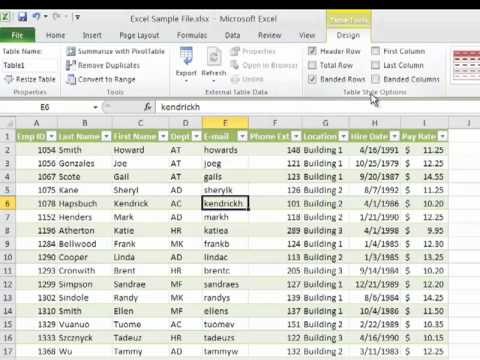
Learn Excel 2010, How to import data from the Web. To learn more about other Microsoft programs, and to watch more excel training videos subscribe, and visit us at http://learnit.com
-Unlimited Excel, Outlook, PowerPoint, Access, MS Office, PhotoShop, Web Design, & lots more!
-17 years teaching software to industry leaders.
-Easy to follow: beginner through advanced.
-Feel secure: Ask a teacher if you have questions.

Learn how to use Microsoft Excel 2010, and discover how to Data Mine. For more Microsoft Excel 2010 training videos, and to learn how use other Microsoft apps subscribe, and visit us at http://learnit.com
-Unlimited Excel, Outlook, PowerPoint, Access, MS Office, PhotoShop, Web Design, & lots more!
-17 years teaching software to industry leaders.
-Easy to follow: beginner through advanced.
-Feel secure: Ask a teacher if you have questions.